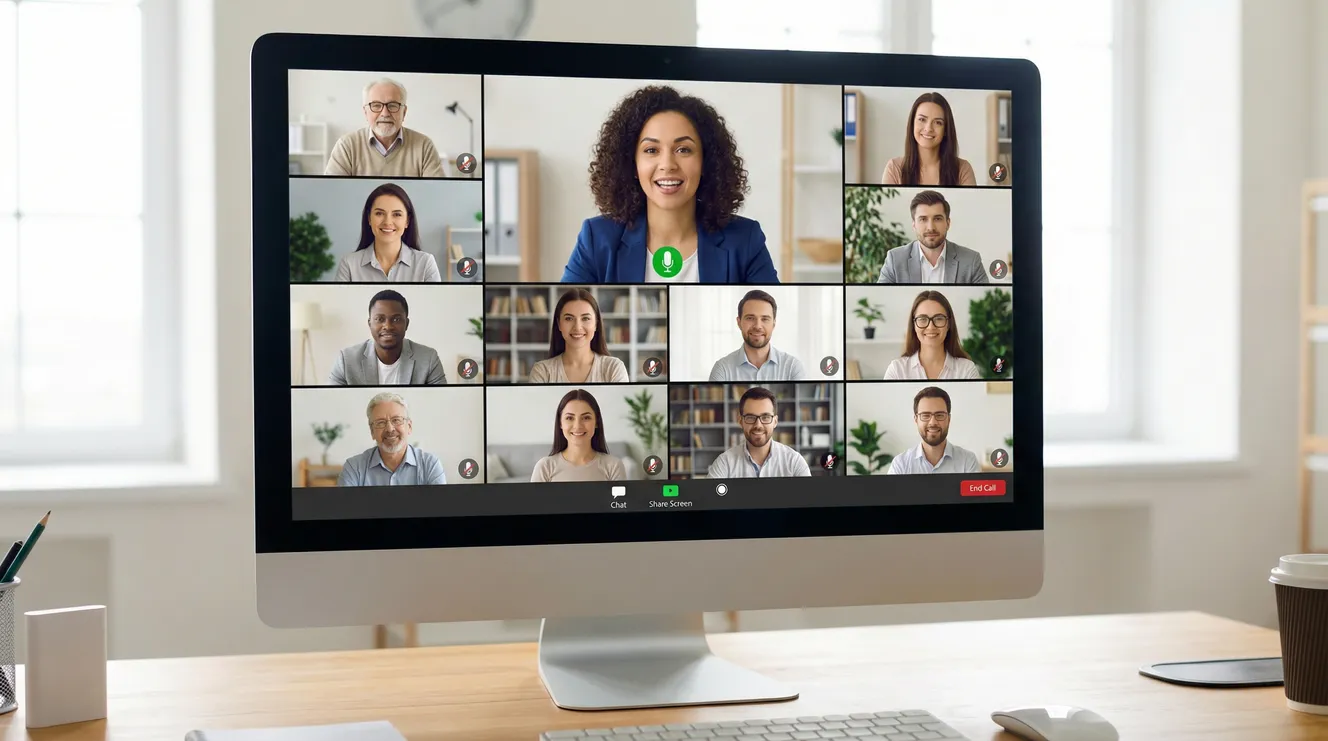
The professional norms that governed boardrooms for decades have evaporated into the digital ether, replaced by a chaotic frontier where the unwritten rules shift weekly and the consequences of violation linger forever in recording archives. Video conferencing has become the primary stage for professional impression management, yet research from Stanford communication studies indicates that 73% of professionals report experiencing “Zoom fatigue”—a distinct exhaustion caused by the cognitive load of interpreting nonverbal cues through screens, the mirror anxiety of self-view, and the suspension of normal conversational turn-taking that video platforms impose.
This fatigue creates a dangerous complacency: the camera-off culture that prioritizes comfort over presence, the multitasking epidemic that destroys meeting value, and the technical amateurism that wastes collective time. While we forgive the occasional dog bark or doorbell ring, we silently judge the persistent lack of preparation—the poor lighting that suggests sloppiness, the chronic interruptions that signal disrespect, the failure to follow up that reveals the meeting was performative rather than productive. Mastering the architecture of video professionalism transforms you from a disembodied voice in a grid into a compelling presence who commands attention and drives outcomes.
The Visual Vocabulary: Camera, Light, and Background as Signals
Your video frame functions as a curated stage set that communicates competence before you speak. The “up the nose” camera angle—laptop placed low on a desk—creates a subordinate, unflattering perspective that undermines authority. Position your camera at eye level, using a stack of books or a laptop stand if necessary. This horizontal gaze projection creates psychological equality; you appear to be looking directly at participants rather than looming over or peering up at them.
Lighting determines whether you appear vibrant or vampiric. Face a window for natural light, or invest in a ring light ($20-40) positioned behind your camera. Avoid backlighting (sitting with a window behind you) which silhouettes your features and suggests you’re concealing your identity. The International Telecommunication Union standards for video conferencing recommend 300-500 lux of frontal illumination—roughly the brightness of a well-lit office—for optimal facial recognition and engagement.
Background selection balances personality with professionalism. Virtual backgrounds often glitch at edges, creating the distracting artifact of disappearing limbs or floating hair. If you must use them, invest in a green screen ($30) or choose static, blurred backgrounds rather than exotic beaches that signal you’re not taking the meeting seriously. Real environments are preferable: a bookshelf suggests intellectual engagement; a neutral wall suggests focus; a messy room suggests chaos. The background should not compete for attention—avoid doors (people walking through), windows (changing light), or clutter that creates visual noise.
The Three-Point Video Setup
Camera Position: Eye level, 18-24 inches from face, centered. Laptop users: elevate with books or stand.
Lighting: Key light facing you (window or ring light), no backlight. Test by looking at your preview—can they see your eyes clearly?
Background: 3-6 feet of depth behind you, static and uncluttered. Remove distracting objects at eye level in frame.
The Audio Architecture: Silence, Interruptions, and Turn-Taking
The mute button is the most powerful tool in video conferencing, yet its misuse creates friction. Stay muted when not speaking to eliminate ambient noise—keyboard typing, breathing, children, pets. However, the “unmute delay” (that half-second lag between deciding to speak and audio activating) disrupts conversational flow. Practice the “push-to-talk” technique if your platform supports it, or hover near the mute button to unmute slightly before speaking.
Interruption etiquette requires new protocols. In person, we read body language indicating someone is finishing speaking; video latency destroys these cues, creating the awkward overlap where two people start simultaneously. Use the “hand raise” feature liberally, or establish a verbal protocol: “I’ll pause there” clearly signals completion, while “Building on that…” indicates intentional interruption. In smaller meetings, the chat function can manage turn-taking (“I have a question about the budget slide” posted while someone speaks prevents talking over).
Audio quality matters more than video quality. A fuzzy picture with crystal sound is tolerable; a pristine image with echo, static, or dropouts is unbearable. Use a dedicated microphone (USB headset or podcast mic) rather than laptop audio—the improvement in clarity signals professionalism. If you must use laptop audio, wear headphones to prevent feedback loops. Test your setup before important calls; most platforms offer test features that playback your audio and video.
The Environment Audit
Soundproofing your space prevents the mortifying moments of domestic interruption. Inform household members of meeting times with visual signals (door hangers, sticky notes). Close windows to reduce traffic noise. Turn off notifications on all devices—the ping of your phone creates Pavlovian distraction for all participants. If you have a barking dog or crying child, the “apologize once, mute immediately” protocol applies: acknowledge briefly, mute, handle off-camera if necessary, return and apologize again only if the disruption was prolonged.
The Temporal Discipline: Punctuality and Presence
“Video time” operates differently from physical time. Joining a video call exactly at the scheduled minute is actually two minutes late—you need buffer time for technical connection, audio checks, and the inevitable “Can you hear me?” ritual. Dial in three to five minutes early for important meetings, camera off if you prefer, to ensure you’re ready when the host begins. This is the video equivalent of arriving at a conference room early to settle in.
Camera etiquette balances presence with practicality. For large presentations (20+ participants), cameras off reduces bandwidth strain and visual distraction—focus on the speaker’s content. For collaborative sessions, client meetings, or team check-ins, cameras on signals engagement and enables nonverbal communication. The “camera on as default” rule applies unless you’re eating, driving, or experiencing technical constraints. Chronic camera-off participation reads as disengagement or multitasking.
The “Brady Bunch” grid creates unique attention dynamics. In person, we look at the speaker; on video, we look at faces, including our own reflection. Disable self-view after checking your framing—studies show it reduces fatigue and increases natural eye contact. When speaking, look at the camera lens (not the faces on screen) to simulate eye contact. This feels unnatural but appears attentive to listeners. Place the video window as close to your camera as possible to minimize the downward gaze that suggests you’re checking your phone.
The Multitasking Taboo: Attention as Respect
The greatest sin of video meetings is the illusion of presence. Everyone knows when you’re reading email—the delay in response, the vacant expression, the keyboard clicking. The Microsoft Work Trend Index found that multitasking during video meetings increased 30% year-over-year, with participants switching windows every two minutes. This fractured attention destroys meeting value and insults participants.
Full-screen the meeting window to prevent the visual temptation of other tabs. Close Slack, email, and browsers. If you must take notes, use pen and paper rather than a digital document that invites tab-switching. The “lean forward” posture—literally moving closer to the screen, nodding occasionally, reacting facially—signals engagement that keeps speakers energized. The “lean back, arms crossed, frozen expression” posture kills meeting energy even if you’re technically listening.
If you cannot give full attention due to crisis or priority conflict, decline the meeting or join audio-only while handling the emergency. Half-presence is worse than absence; it creates the obligation to repeat information later while giving the false impression of consensus. Better to say: “I have a conflict for the first 15 minutes, I’ll join at 10:15” than to attend distracted for the full hour.
The Engagement Checklist
Before: Close all non-essential applications; full-screen meeting window; prepare notes/agenda
During: Camera on; self-view disabled; look at camera when speaking; nod/react visibly; take handwritten notes
After: Confirm next steps in chat or email; follow up within 24 hours on action items
The Recording Reality: Consent, Privacy, and Permanence
Video recordings create liability. In many jurisdictions, recording conversations without consent violates wiretapping laws. Professional etiquette requires explicit notification: “I’m going to record this for team members who couldn’t attend—is that okay with everyone?” The chat function should also capture written consent from anyone joining after the announcement. Never record without disclosure; the discovery of secret recording destroys trust and may create legal exposure.
Assume recordings are permanent and searchable. Comments made “off the cuff” become part of institutional memory. Avoid saying anything in a recorded meeting that you wouldn’t want transcribed in a legal proceeding or played at an all-hands meeting. If you need to have a sensitive sidebar, use the breakout room function or hang up and call separately—don’t whisper on a recorded line.
For participants, the presence of a recording indicator (red dot in Zoom, etc.) should modify behavior. Speak clearly for the microphone; identify yourself before speaking (“This is Sarah in Marketing”) so transcription services can attribute comments correctly; avoid interrupting since overlaps become unintelligible in playback. If you join from a confidential location (home office with visible documents), ensure the background is sanitized or use a background blur.
Technical Competence: The Baseline Expectation
By 2024, basic video conferencing proficiency is as fundamental as email literacy. Chronic technical failures—”I can’t share my screen,” “You’re muted,” “My camera isn’t working”—signal either incompetence or disrespect for others’ time. Before any meeting, test your setup: open the platform, verify camera and mic function, ensure your software is updated to prevent the “You must update to join” delay.
Have backup plans. If your internet fails, can you dial in by phone? If your laptop crashes, do you have the app on your phone? If the platform fails (Zoom outage, Teams glitch), has the host established an alternative bridge? The professional keeps a charged phone with cellular backup ready for hotspot duty when WiFi wavers. “My internet is bad” is not an excuse for repeated disconnections—upgrade your plan or find a coworking space for critical calls.
Screen sharing etiquette requires preparation. Close sensitive documents and browser tabs before sharing (no one needs to see your medical search history or the other client’s file). Enable “Do Not Disturb” to prevent embarrassing notification pop-ups. When presenting, pause periodically to check chat for questions—speakers often monologue unaware that no one can hear them due to a technical issue. The “share specific window” option is safer than “share entire screen” to prevent accidental exposure of desktop clutter.
Technical Failure Recovery
Immediate: “I’m having connection issues, switching to phone audio” (dial the number, don’t keep trying to fix video)
Prolonged: Leave meeting, restart router/computer, rejoin with explanation in chat
Catastrophic: Email host immediately: “Lost connection, unable to rejoin. Please record and send link. Apologies.”
The Follow-Through: Closing the Loop
The meeting isn’t over when you click “Leave.” Video meetings generate commitments that require documentation. Within 24 hours, send a follow-up email confirming action items, deadlines, and decision summaries. This isn’t just organizational hygiene; it creates the record that prevents “I thought you said…” disputes. If you were the host, share the recording link (if applicable) and any shared documents immediately.
The “thank you” note matters more in video culture because we lack the physical handshake or hallway debrief that cement relationships. A brief message—”Thanks for making time today. Looking forward to collaborating on X”—maintains the human connection that video strips away. For client meetings, this follow-up is non-negotiable; for internal meetings, it’s the mark of the colleague who values others’ time.
Finally, perform a “meeting audit” on yourself monthly. Are you attending too many calls? Are your contributions valuable? Video meetings multiply easily because they feel “free” (no travel time), but they consume collective hours that could be asynchronous. The professional knows when to suggest an email instead of a call, when to decline the “FYI” meeting invitation, and when to advocate for shorter agendas. Respect for time is the ultimate etiquette.
Your Digital Presence Is Your Professional Brand
The video call has become the default theater of professional impression management, replacing the firm handshake and the tailored suit with camera angles and microphone discipline. In this medium, technical competence signals preparation, camera presence signals engagement, and follow-through signals reliability. These are not “soft skills” or “nice to haves”—they are the fundamental competencies of modern professional life.
Your power to influence outcomes, build trust, and advance your career now flows through fiber optic cables and webcam lenses. You can be the participant who arrives technically unprepared, visually unprofessional, and audibly distracting—consuming meeting energy while contributing none. Or you can be the one with the steady lighting, the crisp audio, the attentive posture, and the summarized follow-up that moves projects forward.
The choice is yours. Elevate the camera. Check the lighting. Close the distracting tabs. Mute when listening, unmute to contribute clearly. Record only with consent. Follow up within the day. These are the unwritten rules written in the pixels of every meeting you join—obey them, and you signal professionalism; ignore them, and you broadcast amateurism, no matter what your resume says.
Key Takeaways
Camera positioning at eye level, frontal lighting (300-500 lux), and neutral backgrounds create professional visual presence that commands attention before you speak.
Mute when not speaking to eliminate ambient noise; use “push-to-talk” or hover techniques to minimize unmute delay; invest in USB microphones for audio clarity.
Disable self-view and full-screen the meeting to prevent multitasking; maintain “lean forward” posture and visible reactions to signal engagement; look at camera lens when speaking to simulate eye contact.
Always obtain explicit consent before recording meetings; assume recordings are permanent and searchable; sanitize backgrounds and close sensitive documents before screen sharing.
Join 3-5 minutes early for technical buffer; follow up within 24 hours with action items and confirmations; maintain backup plans (phone dial-in, mobile hotspot) for technical failures.